Mastering Your Monthly Budget: A Guide to Using the Monthly Budget Template
Keeping track of your business finances is essential for success. Without a clear view of income and expenses, it's easy to overspend, miss opportunities, or struggle with cash flow. A well-structured budget helps you plan, track, and adjust your financial decisions.
This guide walks through the Monthly Budget Template—a practical Excel tool designed to help businesses compare estimated versus actual figures, analyze top expenses, and make data-driven decisions.
What is a Monthly Budget Template?
A monthly budget template helps businesses plan their expected income and expenses for the month, then track what actually happened. By comparing estimates to actuals, you can identify areas where you're overspending, spot trends, and adjust future budgets accordingly.
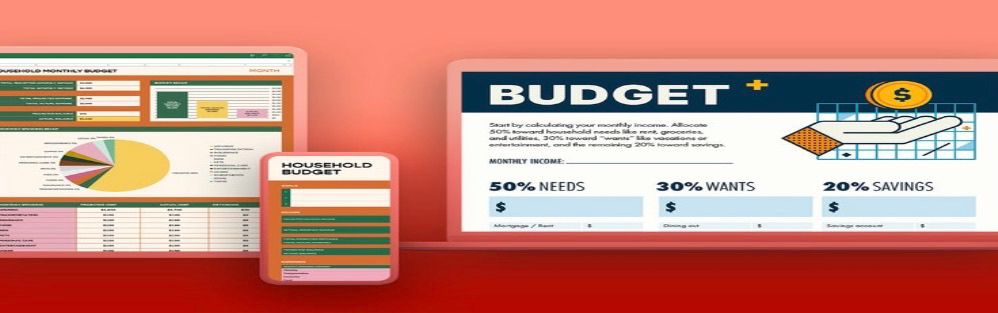
Key Features of This Excel Template
This file consists of four interconnected worksheets:
- Monthly budget summary: The dashboard showing totals, balance, and top five operating expenses
- Income: Detailed breakdown of all income sources
- Personnel expenses: Track wages, benefits, and commissions
- Operating expenses: Comprehensive list of day-to-day business expenses
The template uses Excel tables and formulas to automatically pull data from the detailed sheets into the summary dashboard.
How to Use the Template
Step 1: Enter Your Company Name

Enter your company name once, and it will automatically appear across all worksheets thanks to the named range COMPANY_NAME.
Before entering any numbers, replace "CANEIRO GROUP" with your actual company name. This will populate across all sheets automatically.
Step 2: Set Your Estimated Income

In the Income sheet, enter your expected amounts for each income source. The sample includes net sales, interest income, and asset sales—add or remove rows as needed.
Navigate to the Income sheet and enter your estimated amounts for the month. The template includes common income categories:
- Net sales (your primary revenue)
- Interest income
- Asset sales (gain or loss)
You can add more rows by inserting above the Total row—the table will expand automatically.
Step 3: Enter Estimated Personnel Expenses

Estimate your staff-related costs including wages, benefits, and commissions. These feed directly into the summary dashboard.
In the Personnel expenses sheet, enter your estimated amounts for:
- Wages
- Employee benefits
- Commission
These figures represent the cost of your team for the month.
Step 4: Enter Estimated Operating Expenses

This comprehensive list covers day-to-day business expenses from advertising to utilities. Enter your estimates for each category that applies to your business.
The Operating expenses sheet includes 20 common expense categories:
Advertising, bad debts, cash discounts, delivery costs, depreciation, dues and subscriptions, insurance, interest, legal and auditing, maintenance and repairs, office supplies, postage, rent or mortgage, sales expenses, shipping and storage, supplies, taxes, telephone, utilities, and other.
Enter your estimated amounts for each category relevant to your business.
Step 5: Review Your Summary Dashboard

The summary dashboard pulls everything together—total income, expenses, balance, and a breakdown of your top five operating expenses with reduction scenarios.
The Monthly budget summary sheet is your command center. It shows:
-
Budget Totals: Total estimated income, actual income, and the difference. Total estimated expenses (operating plus personnel), actual expenses, and the difference. Your balance (income minus expenses) for both estimated and actual.
-
Top Five Highest Operating Expenses: The template automatically identifies your five largest operating expenses, shows each as a percentage of total expenses, and calculates what a 15 percent reduction would save. This insight helps you prioritize cost-cutting efforts.
Understanding the Formulas
The template uses several Excel features to automate calculations:
- Structured references: Formulas like =Income[[#Totals],[ESTIMATED]] pull data from the Income table
- SUBTOTAL with 109: This ignores hidden rows if you filter data
- LARGE function: Identifies the top values in a range
- INDEX and MATCH: Pulls the expense name corresponding to each top amount
- The (10^-6)*ROW trick: Creates unique values for ranking while preserving the original numbers
Tips for Success
- Be realistic with estimates. Base your estimated figures on historical data when available. If you're a new business, research industry benchmarks.
- Update regularly. Enter actual figures at least weekly to stay on top of your finances. Monthly updates are the minimum—more frequent is better.
- Investigate variances. When actual differs significantly from estimated, understand why. Did you underestimate a cost? Did something unexpected happen? Use this insight for future budgets.
- Focus on the top five. The template automatically highlights your largest operating expenses. These are your biggest opportunities for cost savings.
- Consider the 15 percent reduction. For each top expense, ask yourself: Could we realistically reduce this by 15 percent? How? The template calculates the dollar impact to show you what's possible.

Frequently Asked Questions
-
Can I add more income or expense categories?
Yes. Both the Income, Personnel expenses, and Operating expenses sheets are Excel tables. Insert rows above the Total row, and the tables will expand automatically. The summary dashboard will include your new categories.
-
What if I don't use all the expense categories?
Leave them blank or enter zero. The formulas handle empty cells correctly.
-
How do I handle irregular expenses?
Some expenses don't occur every month. Include them in the month they actually happen, or divide annual costs by 12 for a monthly estimate.
-
What does the TOP 5 AMOUNT column do?
This column adds a tiny unique value to each actual amount to ensure the ranking works correctly when expenses have identical values. You don't need to enter anything here—it's automatic.
-
Why use SUBTOTAL instead of SUM?
SUBTOTAL with 109 (SUM of visible cells) allows you to filter the table and see subtotals for specific categories. For example, you could filter to see only expenses over a certain amount.
Conclusion
A monthly budget is essential for business success. This template gives you a clear view of your estimated versus actual income and expenses, automatically highlights your biggest cost drivers, and shows you the potential impact of reducing them.
Download the template, enter your estimates, and update actual figures regularly. The insights you gain will help you make better financial decisions and keep your business on track.