Accurate salary allocation is essential for nonprofits, government contractors, and businesses managing multiple projects. Properly tracking labor costs ensures compliance with grant requirements and provides accurate project costing, preventing financial discrepancies that could lead to audit findings.
This guide provides a detailed walkthrough of a comprehensive Salary Allocation Excel Template a tool designed to help organizations track employee time, calculate fringe benefits, and allocate salaries across multiple programs with precision.
Salary allocation distributes an employee's compensation across the projects or functions they work on. If an employee splits their time between Program A (60%) and Administrative duties (40%), their salary and benefit costs should be allocated accordingly. This template automates that process, ensuring accuracy and consistency.

This file consists of six interconnected worksheets:
The template includes built-in formulas, automatic cross-checks, and detailed instructions.
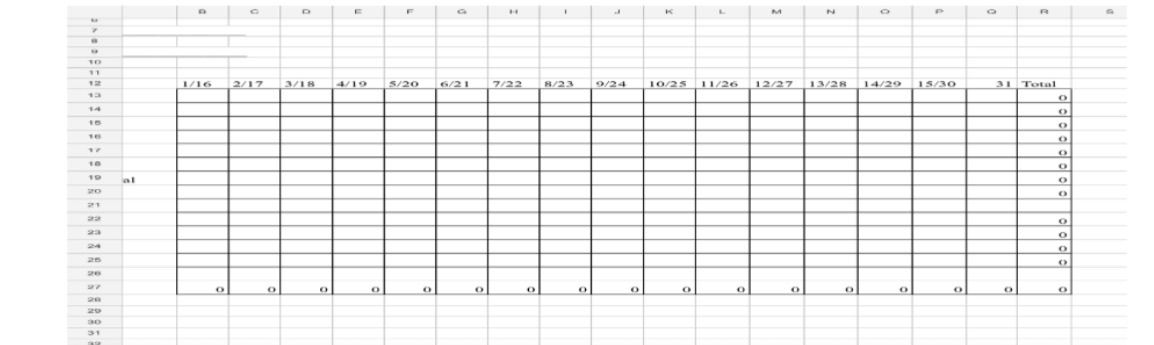
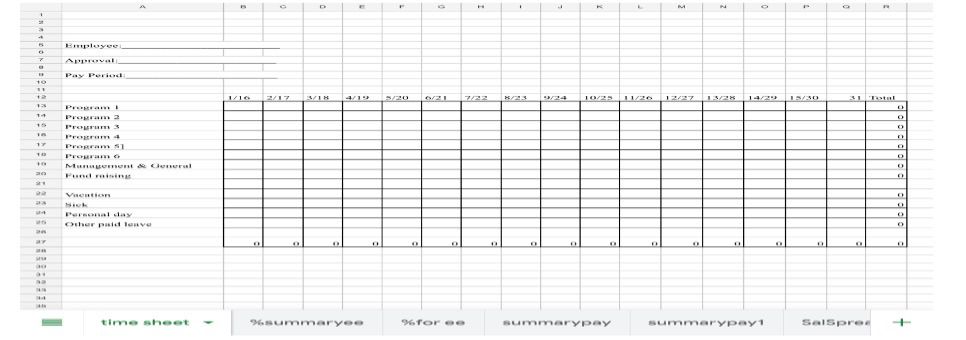
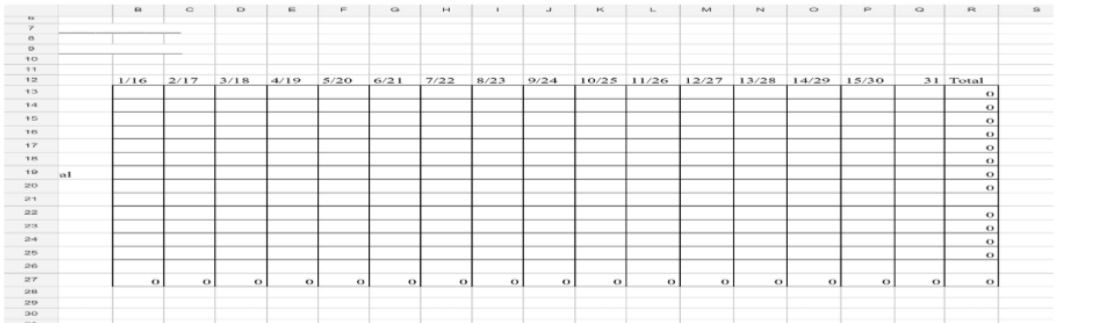
The time sheet tab provides a 31-day grid where employees log hours across programs and paid leave categories. The "Total" column automatically sums hours for each row.
Enter the employee name and pay period. For each day, enter hours worked in the corresponding program row. Use vacation and sick rows for time off.
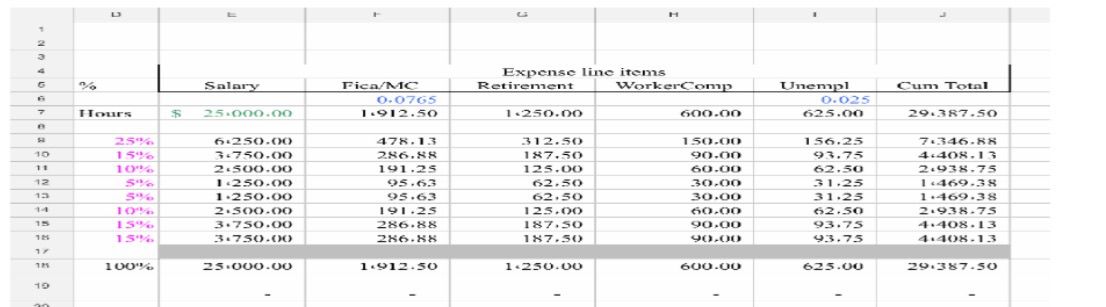
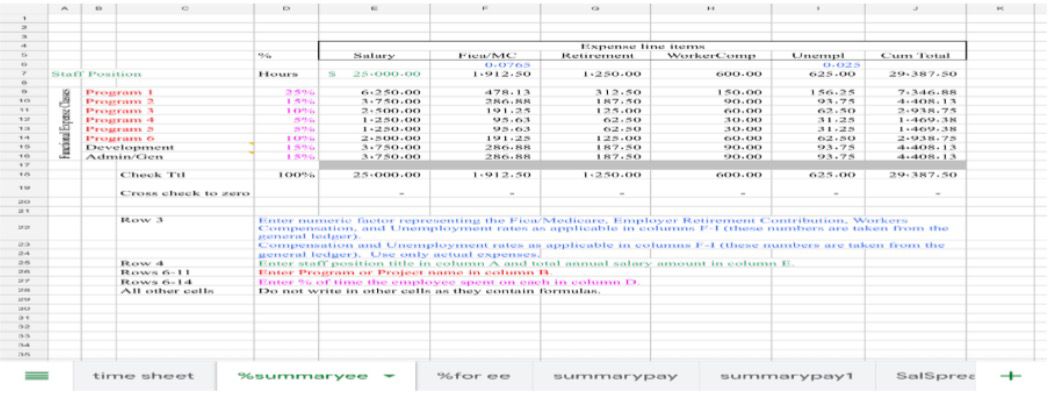
The %summaryee tab allocates a single employee's salary across programs based on time percentages, automatically calculating FICA, retirement, and other benefit costs.
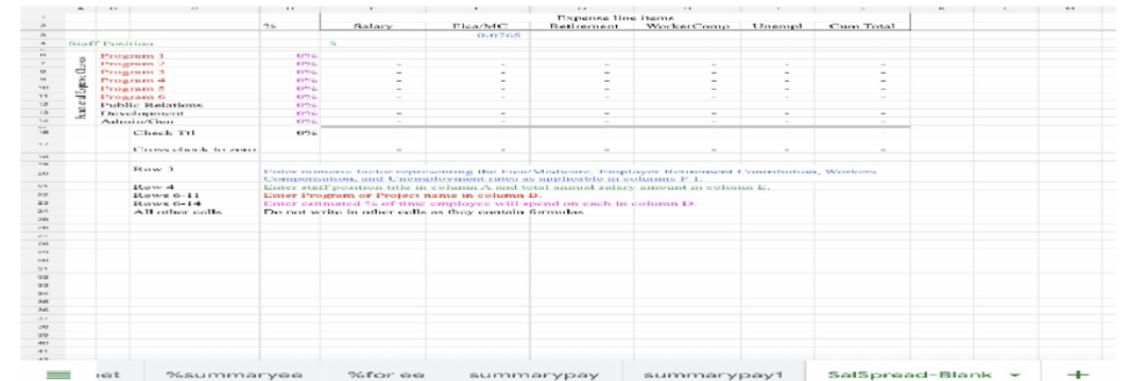
Enter benefit rates in row 3 (FICA, retirement). Enter the staff position and total annual salary in row 4. In rows 6-14, enter the percentage of time spent on each program. The template automatically calculates allocated amounts.
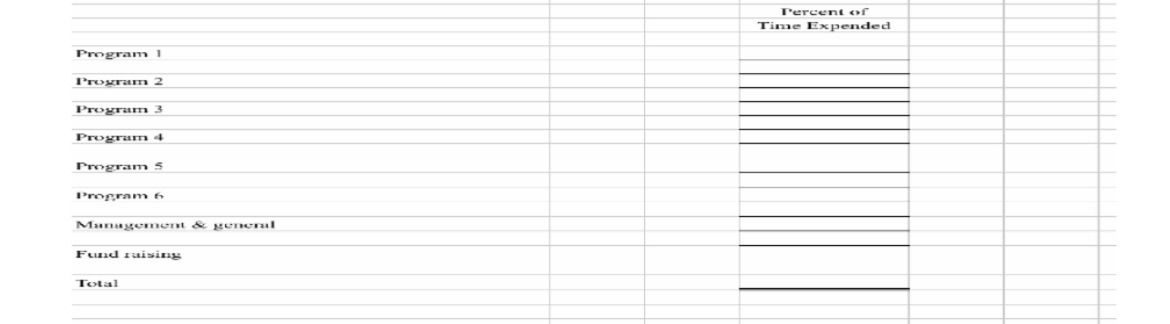
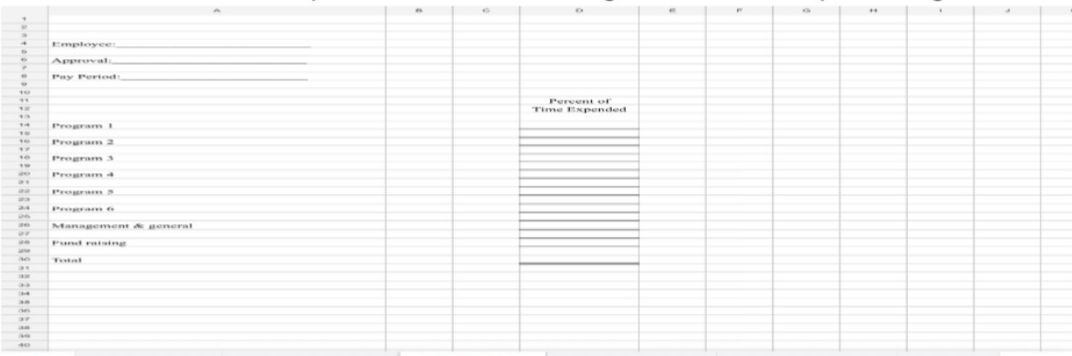
The %for ee tab offers a simple interface for collecting estimated time percentages from employees who don't require daily tracking.
Enter employee details and estimated percentages in column D. The total should equal 100%.
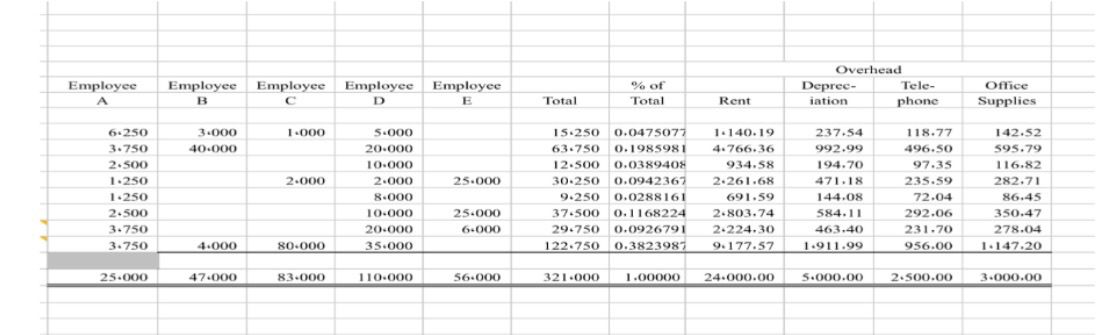
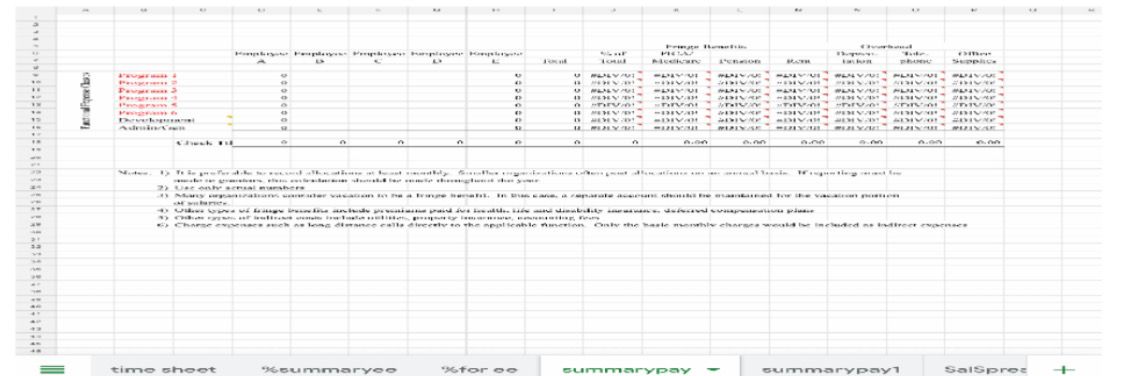
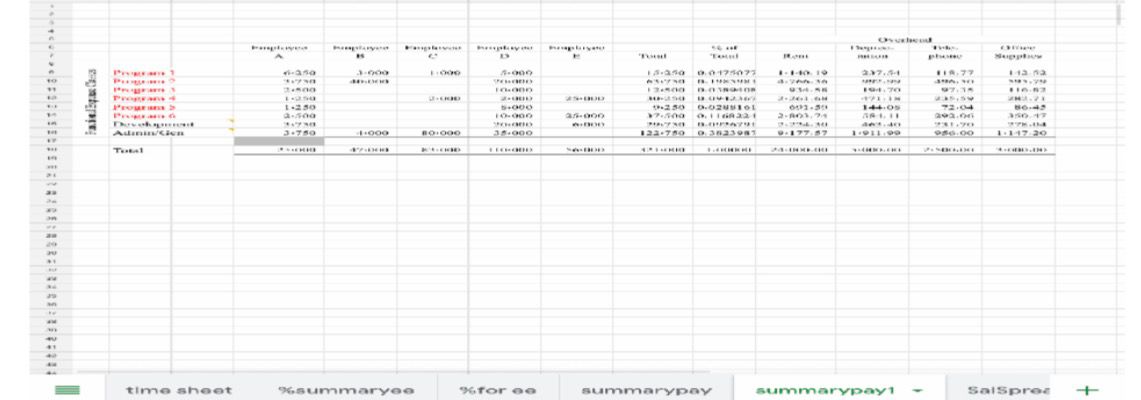
The summarypay1 tab aggregates data from multiple employees, showing total salary by program and automatically calculating overhead allocations based on salary percentages.
These sheets show how costs distribute across programs for all employees combined, with automatic cross-checks ensuring allocations balance.
Use this blank sheet to add new employees. It is identical in structure to "%summaryee" but contains no data.
What benefit rates should I enter?
Enter actual rates your organization pays: FICA (7.65% employer portion), your retirement match percentage, workers' compensation rate, and state unemployment rate.
How often should I update allocations?
At least monthly for grant reporting. Smaller organizations often post annually, but active grants require progress reports throughout the year.
How do I handle vacation time?
The template includes separate rows for leave. Many organizations treat vacation as a fringe benefit and maintain separate accounts for that portion.
Document your methodology. Review percentages quarterly as responsibilities change. Use actual numbers from your general ledger. Train employees to complete time sheets accurately.

Salary allocation doesn't have to be complicated. This Excel template provides a systematic approach to tracking time and distributing costs across programs. Whether you are a nonprofit managing multiple grants or a business preparing for an audit, this template gives you the tools for accurate, defensible allocations.
Download your template:
Download Excel Template